Submitting Requests to CRM
To submit a request to CRM:
-
-
Click Customer Service from the Login screen.
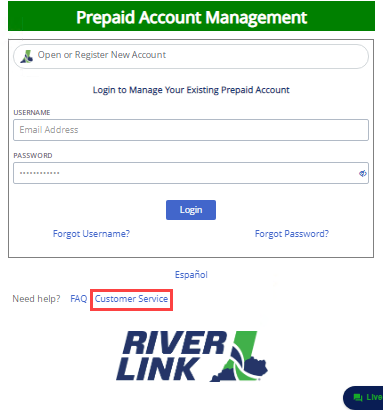
Note: The Customer Service link takes you t o the Contact Us page.
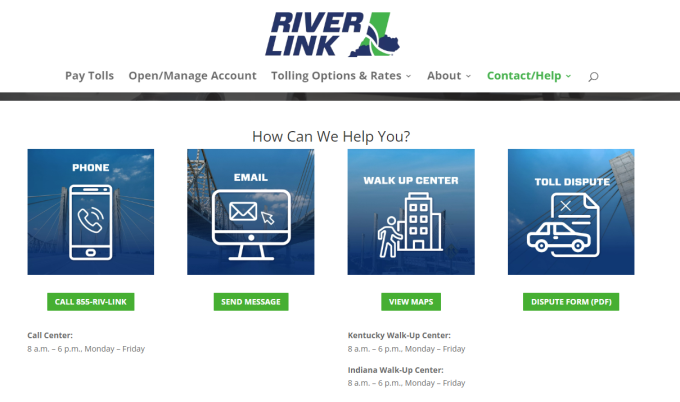
-
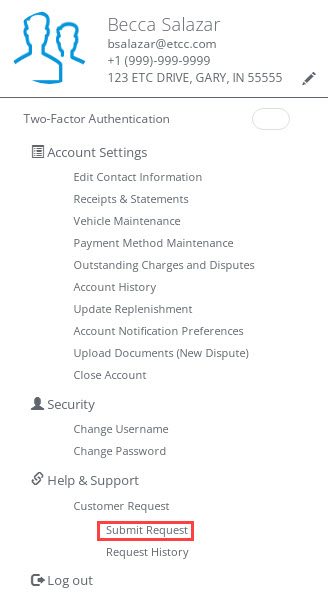
From the More Menu, click Help and Support > Customer Service > Submit Request.
-
-
-
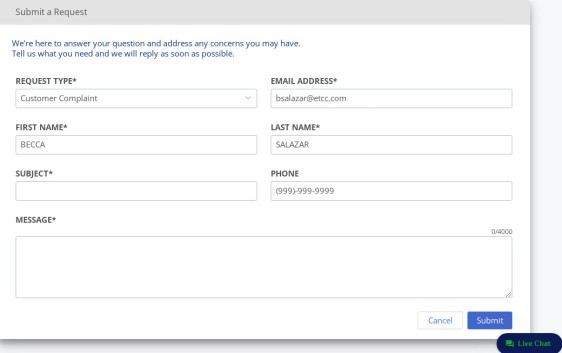
Request Type
-
Email Address
-
First Name
-
Last Name
-
Subject
-
Phone
-
Message
-
-
Click Submit.
-
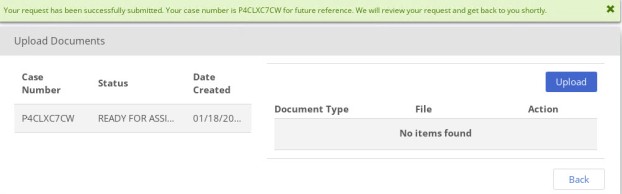
The system creates the case and assigns a Case Number. The Request status is set to Ready for assignment.
-
The Upload Document screen displays.
-
-
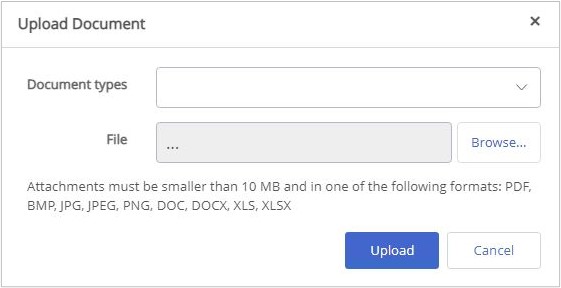
Click Upload.
-
Select a Document Type.
Note: The recognized document extensions are PDF, BMP, JPG, PNG, DOC, DOCX, XLS, or XLSX.
Note: File names can only contain alphabetical/numerical characters, dots, and underscores. -
Click Browse and select the document.
-
Click Upload.